You can create menus in WordPress by visiting Appearance » Menus in your WordPress admin area.
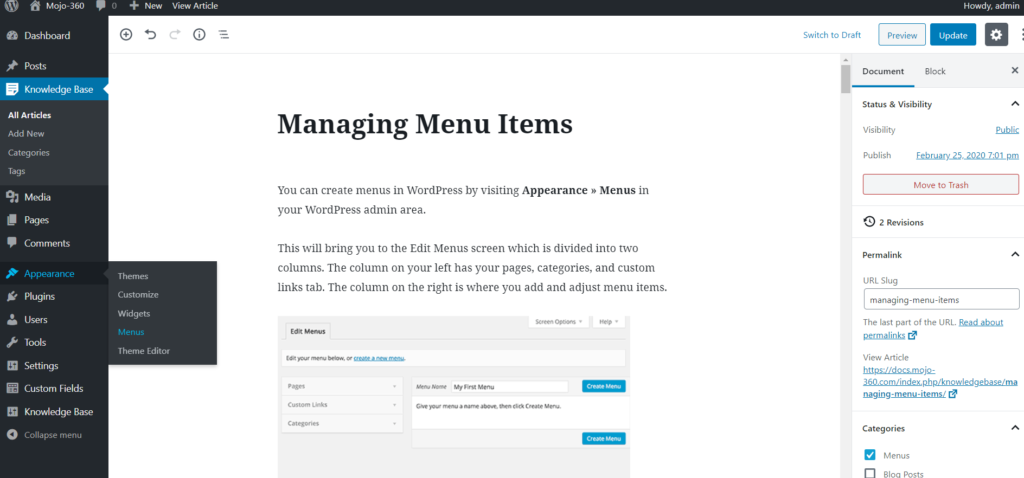
This will bring you to the Edit Menus screen which is divided into two columns. The column on your left has your pages, categories, and custom links tab. The column on the right is where you add and adjust menu items.

Let’s create your first custom navigation menu.
Provide a name for your menu, e.g. ‘My First Menu’ and then click on the create menu button. This will expand the menu area, and it will look like this:
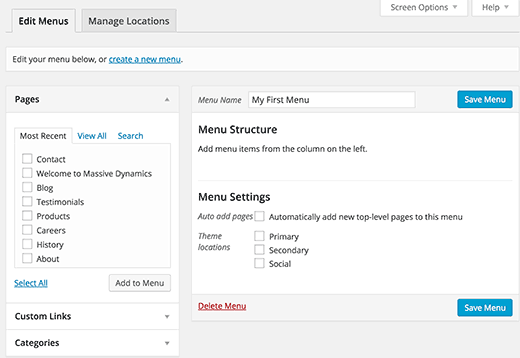
As you can see in the screenshot, our demo site has three theme locations labeled primary, secondary, and social. The location names and placements vary from theme to theme.
Next, you need to select the pages you want to add to the menu. You can do this by selecting the pages listed on the left-hand side and clicking on the Add to Menu button.

After adding pages to the menu, select the theme location where you want to display the menu and click on the ‘Save Menu’ button.

Don’t worry if you’re unsure where each menu location is on your site. You can visit the website to see the menu in action. If you don’t like it, then you can always change the menu location.
Arranging Items in a Custom Navigation Menu
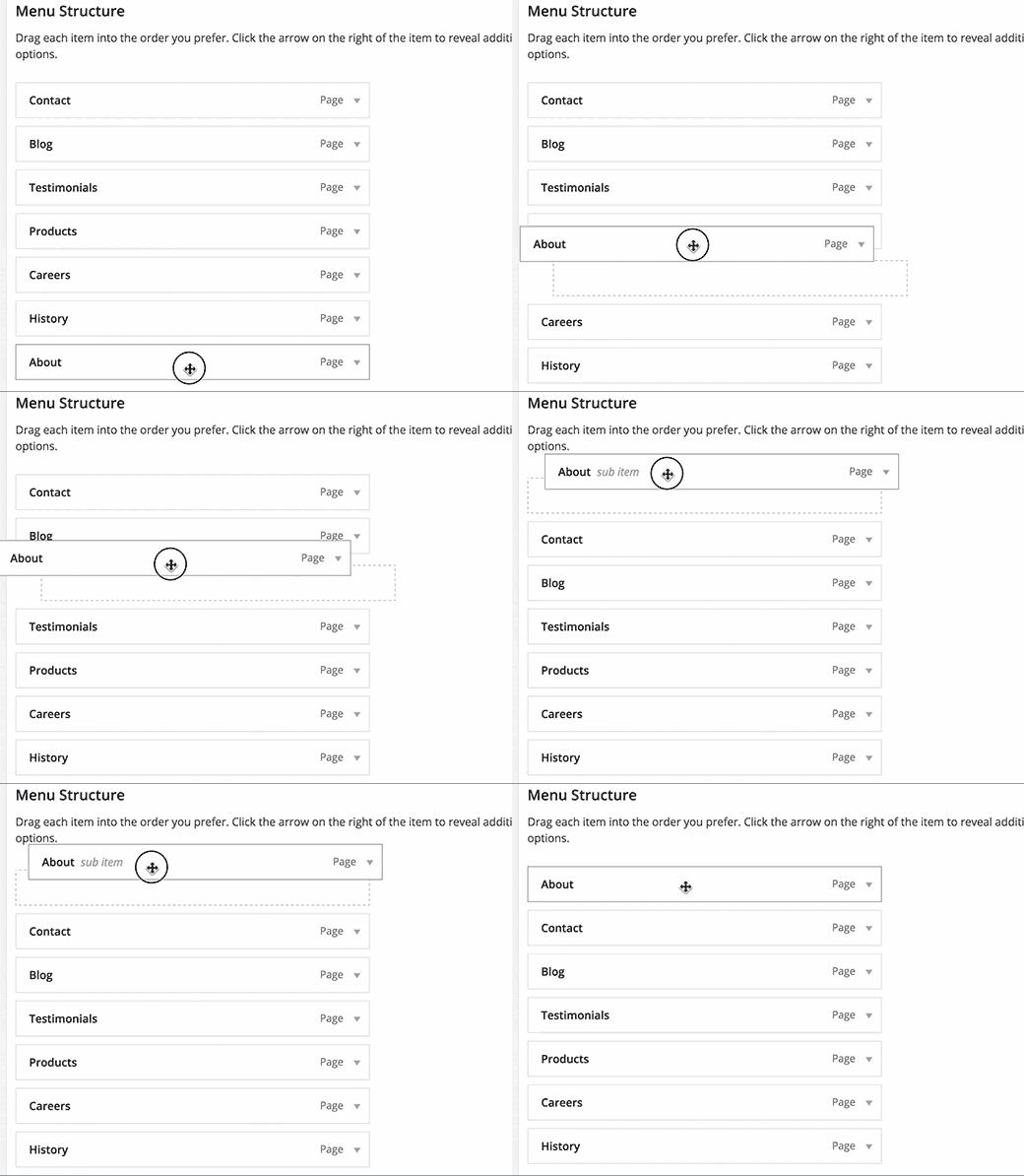
You probably noticed that each menu item you added is arranged in the order you added them. For example, your about link appears at the end, while the contact page link appears first. Don’t worry you can easily rearrange your WordPress menu items in any order you want.
Simply drag and drop a menu item to adjust its position in the menu.
Repeat the process to create new menus for other theme locations.
Creating Nested Drop-Down Menus in WordPress
Nested menus, also known as drop-down menus, are navigational menus with parent and child menu items. These menus are usually styled by WordPress themes in such a way that when a user takes their mouse to a parent item, all their sub-menus are displayed.
Creating nested menus allow you to add a properly structured navigation system to your site. Here is how you can add a menu item as a sub-menu in WordPress.
In your menu structure, drag the menu item just below the parent item. Next, slightly drag the menu item to the right. You will notice that it will automatically become a sub-menu item.

You can add multiple layers of sub-items to create deeply nested navigation menus. However, it’s important to note that not all themes support multi-layer nested menus. Most do up to 2-layers.

Adding Categories to WordPress Menus
If you’re using WordPress to run a blog, then you can add your blog categories as a drop-down in your WordPress menu.
By default, WordPress provides an easier way to add pages and categories from the left-hand column on the menu editor screen.
Start by clicking on the Categories tab to expand it. You will see your blog categories listed there. Simply select the categories you want to add to the menu, and then click on add to menu button.
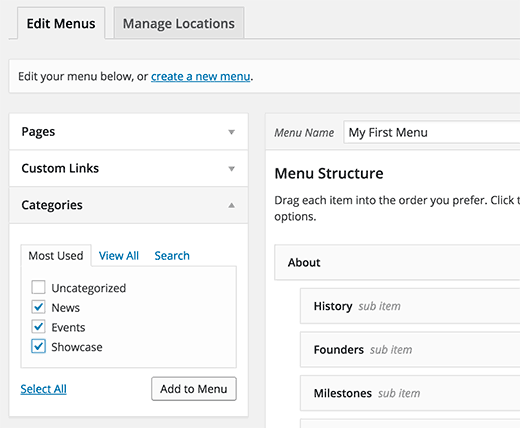
You will notice that categories will appear as menu items under the menu structure column. Just like pages, you can simply drag and drop them to arrange their position on the menu. In this example, we have dragged all categories to appear as sub-menu items under the Blog.

Adding Custom Links to Your WordPress Navigation Menus
While adding categories and pages is easy, what if you want to add a link to your social media profile or another location? This is when you can use the custom link option.
Simply click on the custom link tab in the left-hand column to expand it. You will notice that it only has two fields. The first one is for URL where you will need to add the actual link you want to add. The second field is labeled link text where you will add the anchor text for the link.
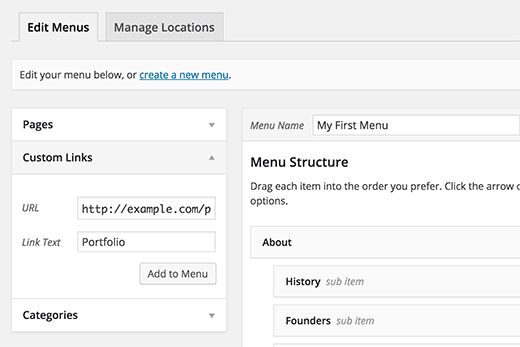
Note: It’s important that you must start all links with Http:// or https://. If you don’t, then the links will be broken.
Editing a Menu Item in WordPress Navigation Menus
When you add pages or categories to your custom navigation menu, WordPress automatically uses the page title or category name as the link text. This does not mean that you cannot change it.
All menu items can be edited by simply clicking on the downward arrow next to a menu item.

Here you can change the menu’s navigational title or link text. You can also add a title attribute to the link. Don’t forget to click on the save menu button to store your changes before previewing your website.
Removing a Link From Navigation Menus in WordPress
You can remove a link in the same way you edit them. Just click on the downward arrow icon next to a menu item, and you will notice a red Remove link. When you clicking on it, the link will be removed from your navigation menus.

Understanding Theme Locations For Your Navigation Menus
Navigation-Menus is a theme feature in WordPress. Their appearance and display are controlled entirely by your WordPress theme. The admin area only provides a user interface to add and manage those menus.
WordPress themes usually have at least one theme location for navigation menus. However, some themes may have more than one theme locations such as the theme we used while writing this article which had three theme locations primary, secondary, and a social menu.

Also, it’s important to note that the names of these menu locations would also vary from theme to theme. While some may call it primary another may call it a header. It’s entirely based on the theme developer’s preference.
Aside from the designated menu locations set by themes, you can also add navigation menus in your sidebar and other widget-ready areas of your theme.
You can add menus in your sidebars by using widgets. Simply go to Appearance » Widgets and add Custom Menu widget from the list of available widgets to a sidebar.

Next, you need to provide a title for the widget heading and select one of your custom menus from the select menu drop-down list. Lastly, click on the Save button to store your widget settings.
